Office E5 Subscription
!!!2024年4月开始,微软开始大规模整治E5,大量封号,建议不要尝试本文方法!!!
其实这玩意去年年末我已经开始搞了,中间想写一篇关于如何白嫖的文章,但是我担心没法续订,所以拖到现在才写。
什么是Office E5
Office 365 开发版 E5 是为开发人员提供的。申请Office 365开发者计划,可以获得为期3个月的免费Office 365 E5。
注册成功之后可以获得为其90天的全套Office 365,每个人拥有5T Onedrive网盘。
(该许可证最多可添加25个用户,就相当于25个Office 365订阅,5T×25的Onedrive容量)
快到90天的时候微软如果认为你是开发者,会自动进行续订,再给你90天的订阅时间,并发送一封续订成功的电子邮件。
网上有人说,如果到了90天之后,微软会给你点时间进行数据备份,然后微软会删除你的数据,到了这个时候就乖乖备份吧(我没到过这个阶段,你可以赌一下)
顺便晒一下续订成功的邮件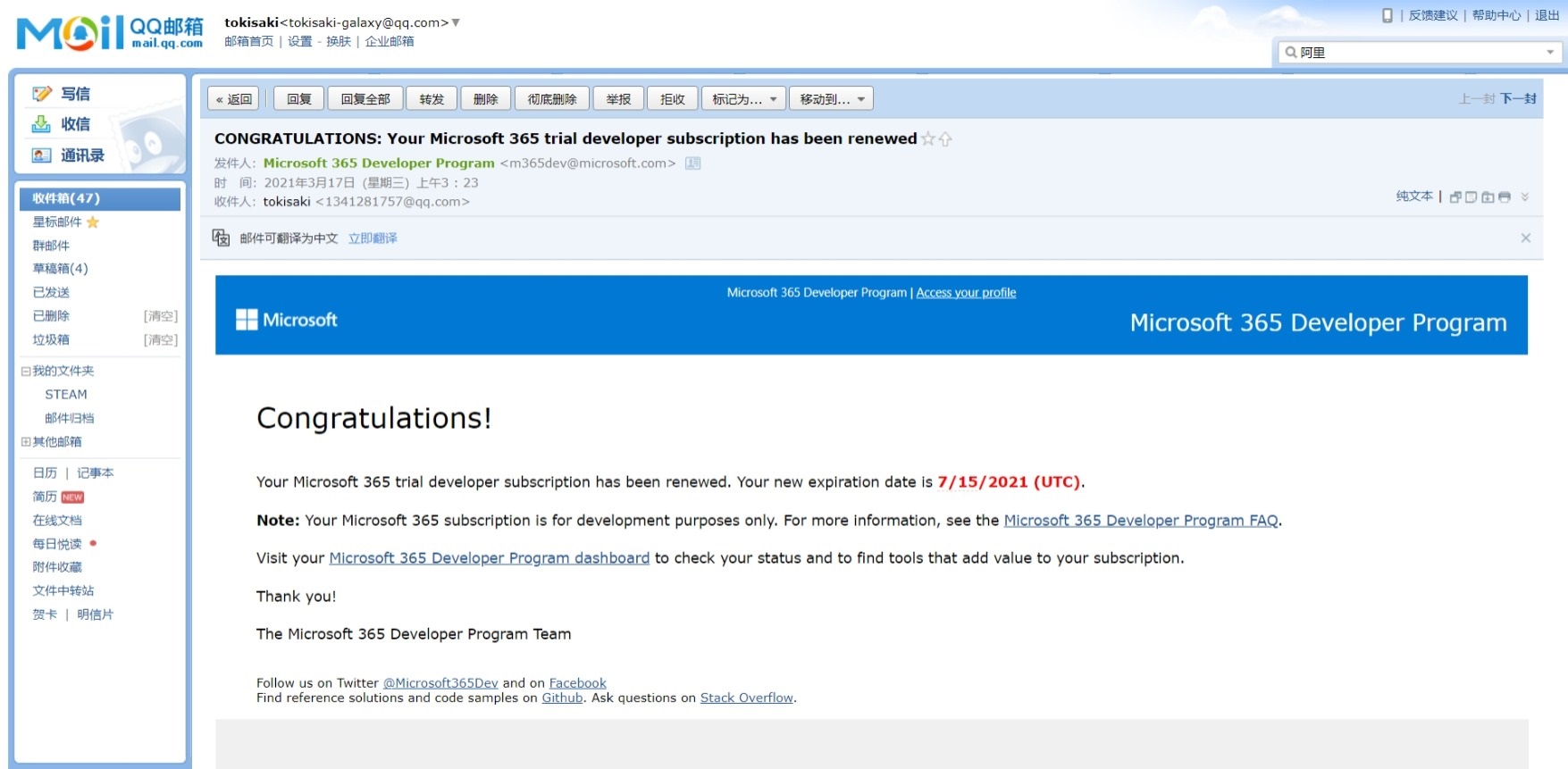
申请教程
申请Office E5
1.进入官网后,点击立即加入。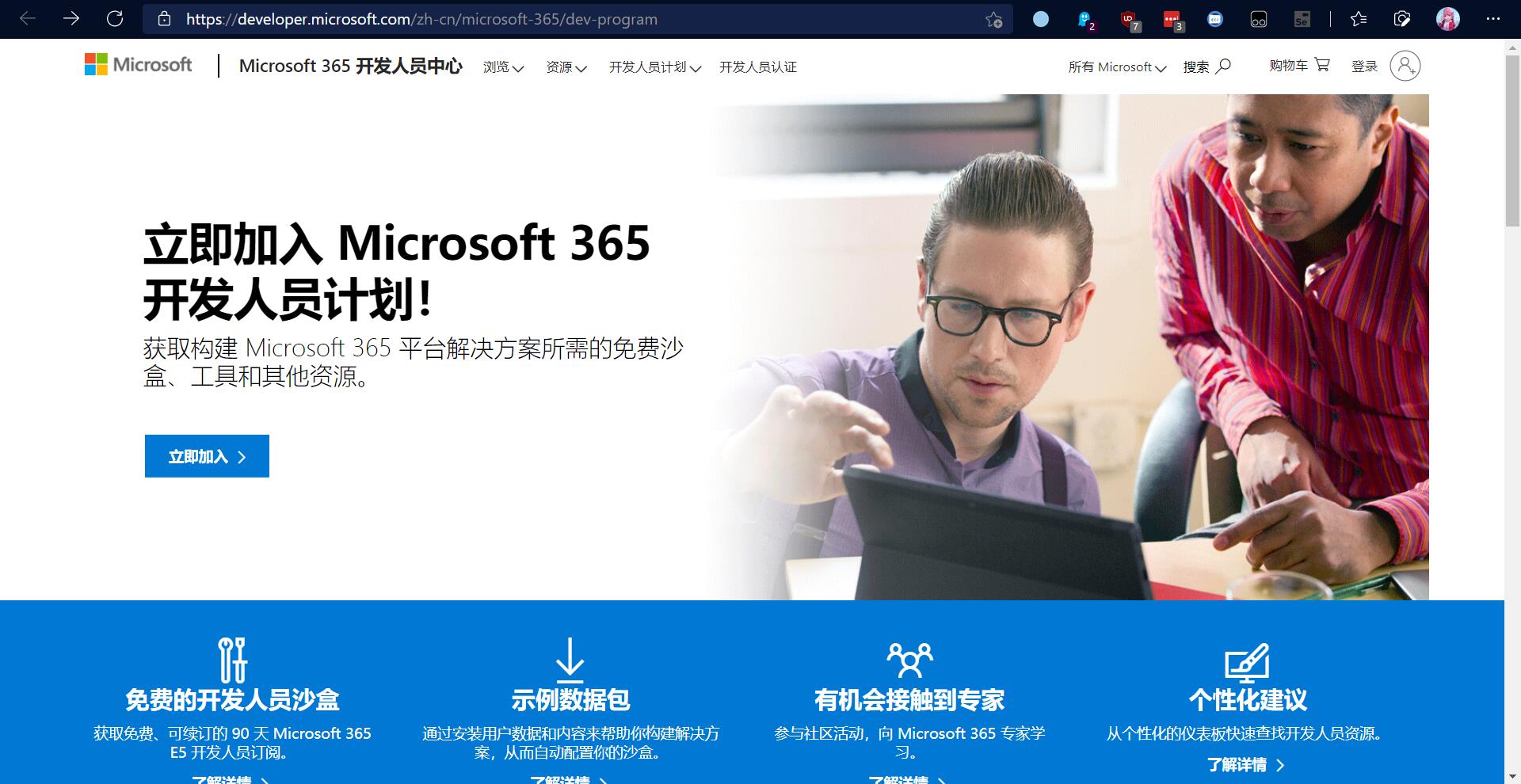
用自己的微软账户登录
登录之后填写国家地区、基本信息就不说了,自己写就好了
创建订阅
这一步很关键,
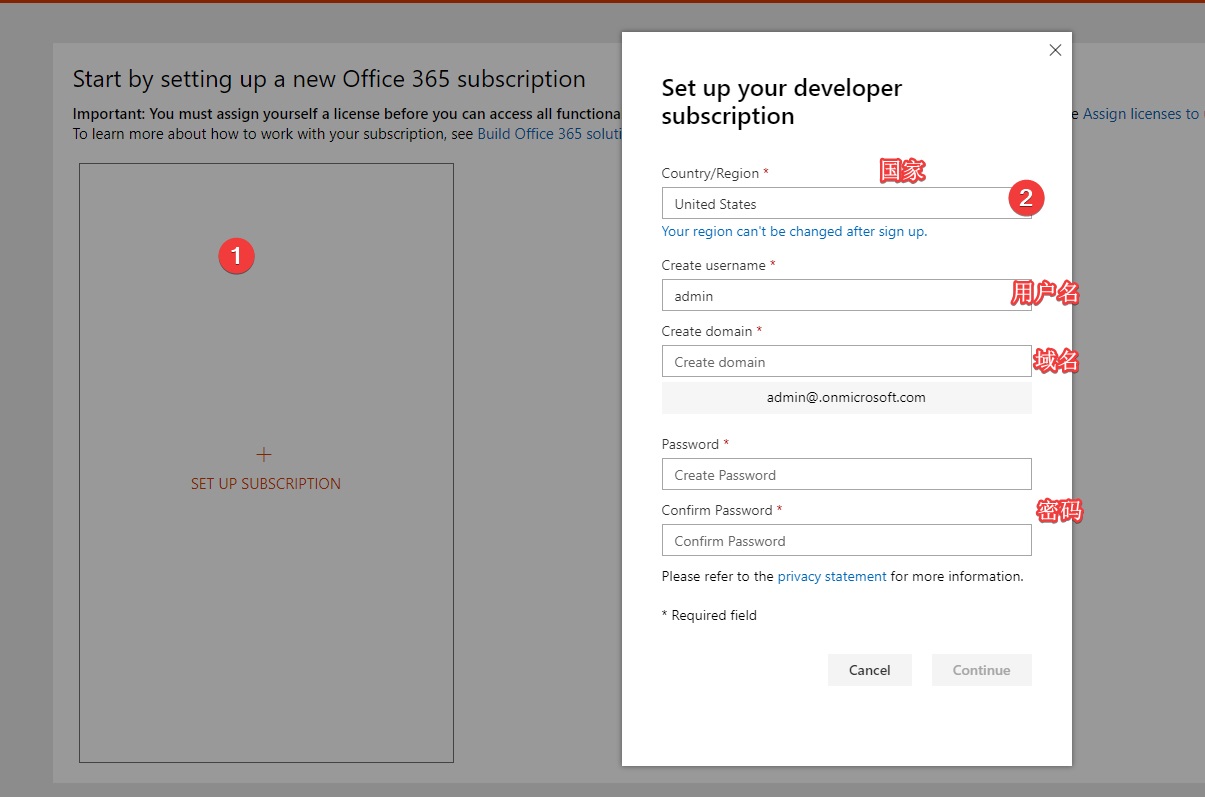
第一个国家的意思是你的onedrive数据等存储位置。比如我选择US,那么我的数据就是放在美国的微软数据中心。所以根据你自己的真实位置去选择。(当然一般建议如果都很远就选美国,因为美国的网络基础建设很好,以后搭网盘也快一点)
第二个用户名随意,admin或者root再或者iamsb随便挑。
第三个域名,是登录时的后缀。是由microsoft给你的免费二级域名。其实也是个邮箱地址的后缀。
随便写一个自己喜欢的就好,只要不是已经被注册的就行。但是注意,这个注册完就不能改了。
然后会让你验证一个手机号。用国内的也行。
添加许可证
接着上面,验证完手机号之后你会跳转到这个页面,(当然你应该是显示91天,我这里是因为续订了,才显示120天)。点击那个用红框框出来的按钮,进入后台。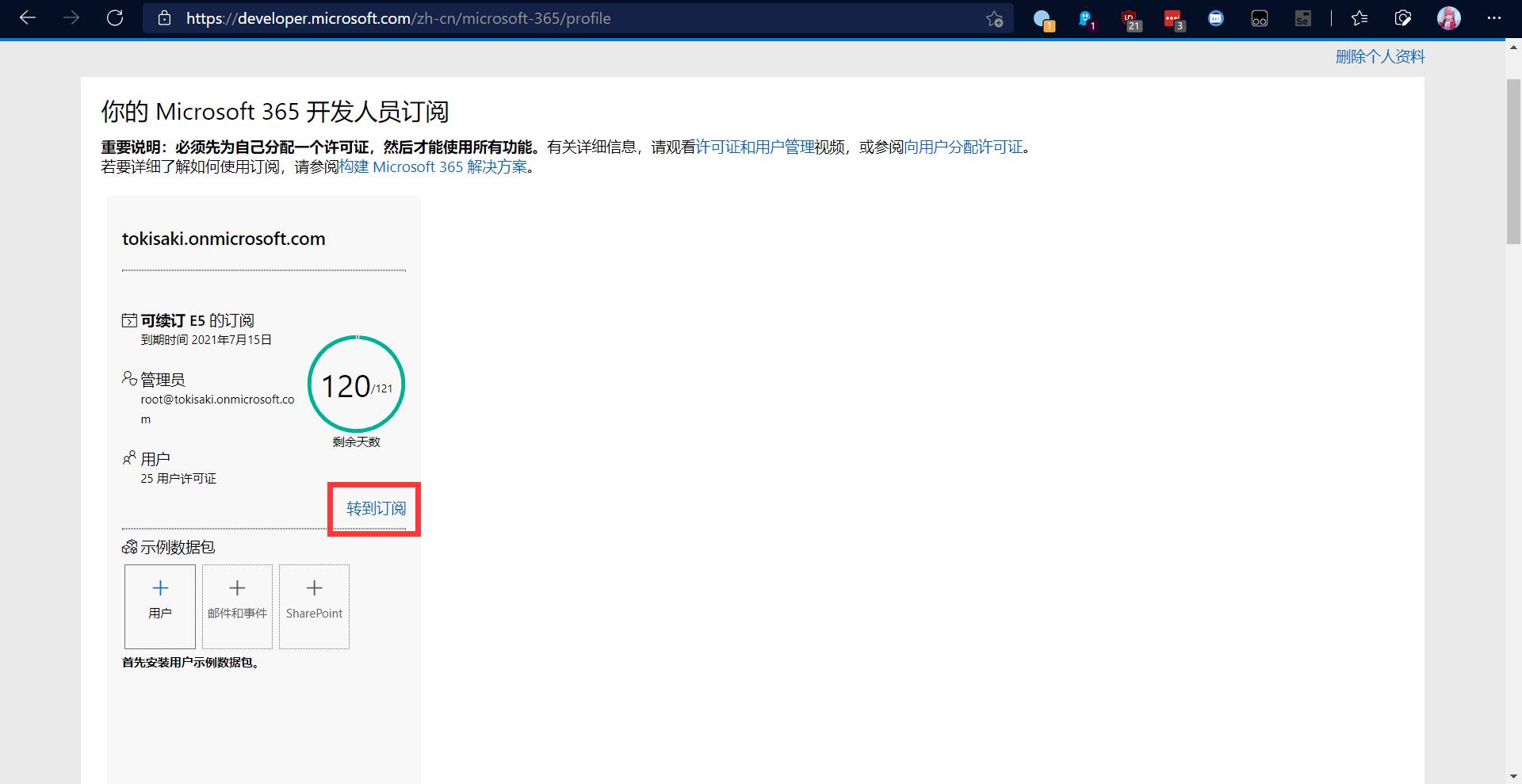
现在,我们已经申请好了E5订阅了。如果你只是自己用,现在已经可以使用“用户名@域.onmicrosoft.com”和之前设置的密码登录你电脑上的Office和Onedrive了。
进后台最好挂个梯子,不然国内有些地区加载不了。
进入 管理 - > 用户 -> 活跃用户 -> 点击用户名 -> 许可证和用户 ,添加好后点击应用就可以了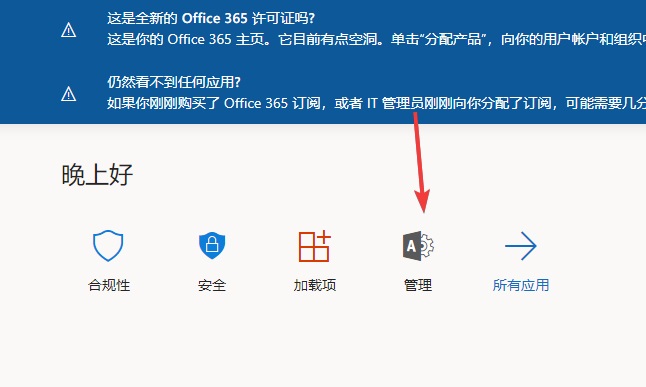
Onedrive网盘
设置5T网盘容量
默认onedrive容量是1T,但是可以通过设置更改为5T。(强烈建议去改成5T)
一个域名下最多有25个用户,所以最多有25*5T=125T的云存储空间。还可以改回收站保留时间。
修改默认容量大小:
打开微软365管理中心,点击前往✈ 登陆上你的E5管理员账号。
点击左侧下方的全部显示,点击展开后显示的“SharePoint”,点击打开,选到左边设置,就可以修改默认Onedrive分配大小。
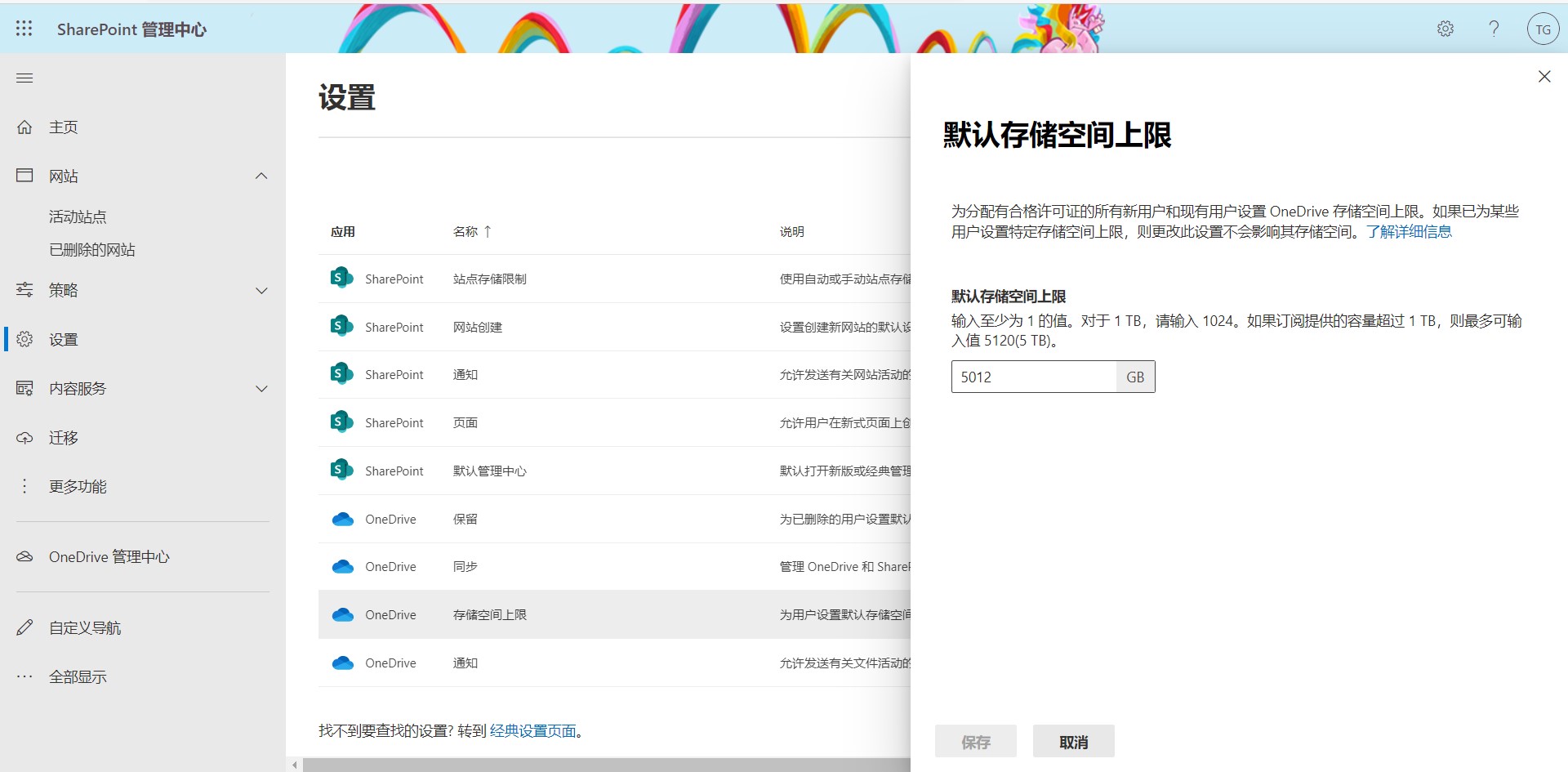
其他自己去慢慢探索吧,就不详细说了。
零零碎碎的其他注意事项
最好给管理员控制面板加个书签,免得找不到
自动续订教程
Office E5订阅第一次订阅有效期是90天,到期后会进行一次检测,以此判断你是否有资格继续白嫖。
无限续期的原理是多次调用API来达到让microsoft认为你是开发者,然后给你白嫖(自动续期)E5的效果。所以续订不是100%成功的,要看巨硬心情。
(虽然挺大概率成功的,但总归要提醒一下,以防万一
Telegram法
首推这个方法,最简单的。
添加这个机器人,然后按提示一步一步走就行了,记得设机器人为免打扰,不然吵死你。
Github Actions法
论Github Actions的无数种用法。
根据教程一步一步做就行了,挺简单的。
OneIndex法
这个严格来说不能算一个单独的续订方法,续订只是它的一个副产品而已,但是也顺便加上了(毕竟怎么说都是能续订的)。
这个说的东西有点多,有空哪天再开个坑详细讲吧。这个玩意已经算是个Onedrive的第三方客户端了。今天彩六新赛季,要去上分了。
!!! Starting April 2024, Microsoft began a large-scale crackdown on E5, with massive account suspensions. It is advised NOT to try the methods described in this article!!!
Actually, I started messing with this thing late last year. I wanted to write an article about how to get it for free in between, but I was worried it might not renew, so I’ve waited until now to write it.
What is Office E5
Office 365 Developer E5 is provided for developers. By applying for the Office 365 Developer Program, you can get a 3-month free trial of Office 365 E5.
After successful registration, you’ll get the full suite of Office 365 for 90 days, and each person gets a 5T Onedrive cloud storage.
(The license can add up to 25 users, which is equivalent to 25 Office 365 subscriptions, or 5T×25 of Onedrive storage.)
Around the 90-day mark, if Microsoft deems you a developer, it will automatically renew the subscription, giving you another 90 days and sending a renewal confirmation email.
Some online sources say that if you reach the 90-day limit, Microsoft will give you some time for data backup, and then delete your data. If it gets to that point, just back up (I haven’t reached that stage myself, you can take the risk if you want).
By the way, here’s a screenshot of a successful renewal email.
Application Tutorial
Apply for Office E5
- Go to the official website and click “Join now”.
Sign in with your Microsoft account.
After signing in, fill in the country/region and basic information; just fill them out yourself.
Create a subscription
This step is crucial.
The first “Country” refers to where your Onedrive data and other storage will be located. For example, if I choose US, my data is stored in Microsoft’s US data centers. So choose according to your real location. (If all options are far away, it’s generally recommended to choose the US because its network infrastructure is good, making potential future cloud storage setups faster.)
The second “Username” can be anything: admin, root, iamsb, whichever you like.
The third “Domain” is the suffix for login. It’s a free second-level domain Microsoft gives you. It’s also the suffix for an email address.
Just write any one you like, as long as it’s not already registered. But note: this cannot be changed after registration.
Then you’ll need to verify a phone number. Domestic (Chinese) numbers work.
Add Licenses
Following the above, after verifying your phone number, you’ll be redirected to this page, (You will likely see 91 days; I show 120 days here because I renewed). Click the button highlighted with a red box to enter the admin panel.
Now, we have successfully applied for the E5 subscription. If you are only using it for yourself, you can now log in to your PC’s Office and Onedrive using “username@domain.onmicrosoft.com“ and the password you set earlier.
It’s best to use a VPN for the admin panel; otherwise, some regions in China may not be able to load it.
Go to Admin Center -> Users -> Active users -> Click the username -> Licenses and apps, add the appropriate licenses, then click Apply.
Onedrive Cloud Storage
Set 5T Storage Capacity
The default Onedrive capacity is 1T, but it can be changed to 5T via settings. (Highly recommended to change it to 5T.)
A single domain can have up to 25 users, so that’s a maximum of 25*5T = 125T of cloud storage space. You can also change the recycle bin retention time.
To modify the default storage size:
Open the Microsoft 365 Admin Center, Fly there✈ and log in with your E5 admin account.
Click “Show all” at the bottom left, then click the revealed “SharePoint”. Open it, select “Settings” on the left, and you can modify the default Onedrive allocation size.
Explore other settings on your own; I won’t go into more detail.
Miscellaneous Other Notes
It’s best to bookmark the Admin Control Panel so you don’t lose it.
Auto-Renewal Tutorial
The first Office E5 subscription is valid for 90 days. After expiration, it undergoes a check to determine if you are eligible to continue using it for free.
The principle of unlimited renewal is to make multiple API calls to make Microsoft believe you are a developer, thus granting you the free (auto-renewal) E5 benefit. Therefore, renewal is not 100% guaranteed; it depends on Microsoft’s mood.
(Although the success rate is quite high, it’s good to mention this just in case.)
Telegram Method
This is the first recommended method, the simplest.
Add this bot, then follow the instructions step by step. Remember to set the bot to “mute notifications” or it will be very noisy.
Github Actions Method
Discussing the countless uses of Github Actions.
Follow the tutorial step by step; it’s quite simple.
OneIndex Method
Strictly speaking, this isn’t a standalone renewal method; renewal is just a byproduct. But I’m including it anyway (since it can renew).
There’s quite a lot to cover about this. I might write a detailed post about it another day when I have time. This thing effectively functions as a third-party client for Onedrive. Today is the new Rainbow Six Siege season, gotta go rank up.